- Enable the LMX logs:
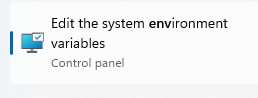
- Go to the Startup Menu and type “env” to search for Environment Variables
- Click on the “Environment variables” menu
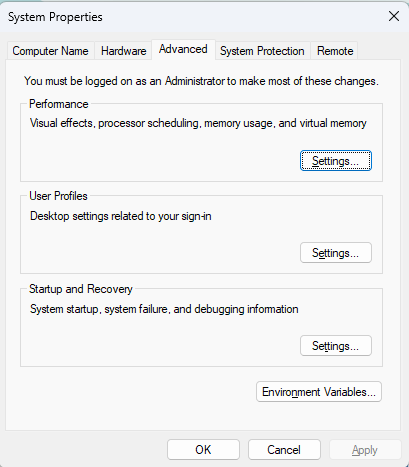
- Click on the “Environment variables” button in the lower half.
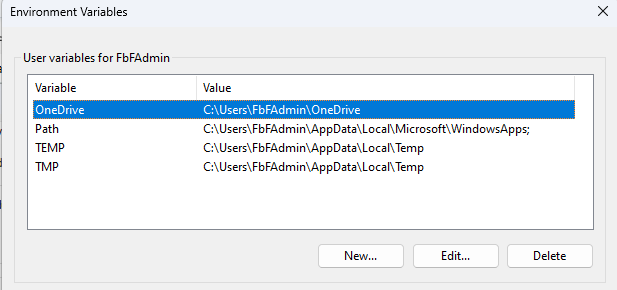
- In the “Users variables” section (upper half), click on the “New” button.
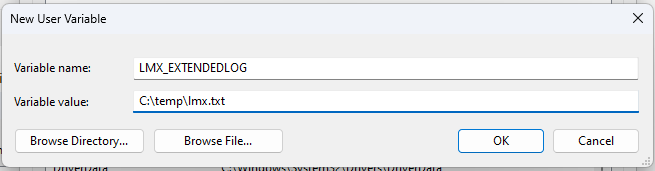
- Input the following information:
- Variable name: LMX_EXTENDEDLOG
- Variable value: C:\temp\lmx.txt
- Note: The path (directories) must exist, but the filename doesn’t need to exist. The current user must have read and write permissions into the target folder.
- Start LiveScan (or any other impacted application). All the licensing functions will take more time to execute. It’s “normal” if the software launches more slowly than usual.
- Access the licensing log file (ex: C:\temp\lmx.txt). It should contain all the information needed to understand the licensing problem. If the problem is not clear, send to ENG.
- When you’re done, make sure to delete the LMX_EXTENDEDLOG environment variable.
Was this article helpful?
That’s Great!
Thank you for your feedback
Sorry! We couldn't be helpful
Thank you for your feedback
Feedback sent
We appreciate your effort and will try to fix the article