Last Edit by Rosa Arellano - 02/12/2026
Purpose
If you received the error message "Please check the outgoing server settings." and you are using Gmail to transmit to FDLE, It is possible that you have recently changed your Gmail password, two factor authentication was turned off, or the application password has expired.
Please follow the steps below to create/re-establish an application password in LiveScan and test the transmission.
Procedure
Log into your Gmail account.
Figure 001
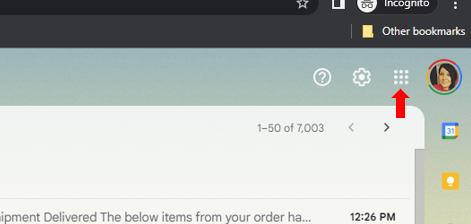
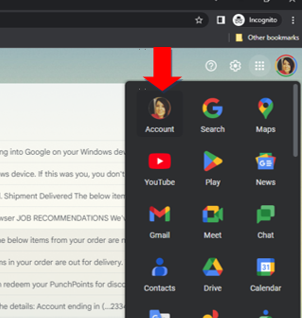
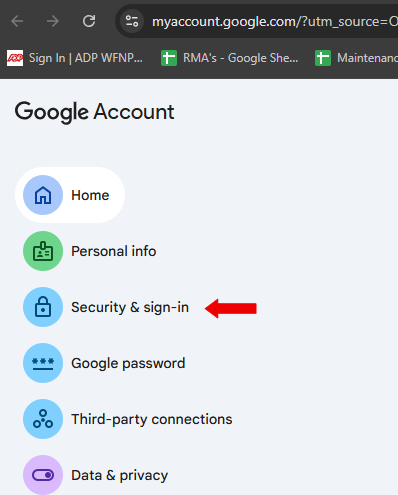
Under ‘How you sign in to Google’ you should see 2-Step Verification. Make sure it is turned ON. (See Figure 004 below)
Figure 004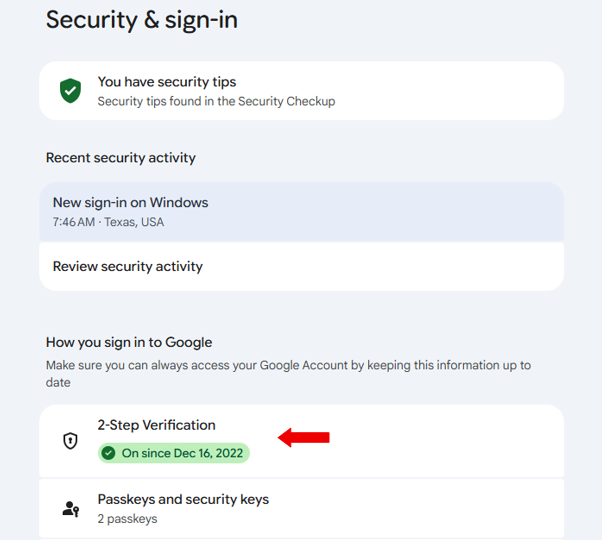
If 2-Step Verification is OFF, please go through the process and prompts of turning on 2-Step Verification. Passwords may need to be re-entered, codes might get sent as text messages that will have to be typed in.
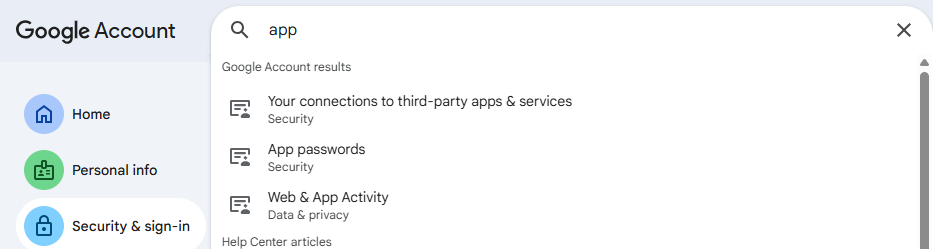
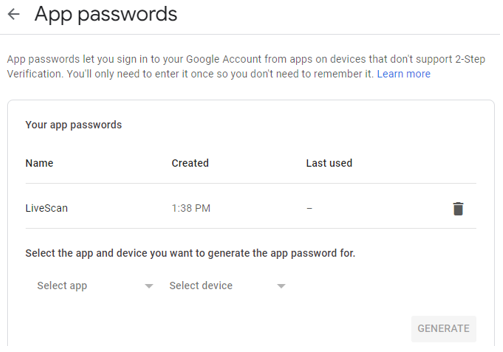
Click on App passwords in the list.
Google may prompt for the Gmail password to be entered again. Please enter it, if prompted.
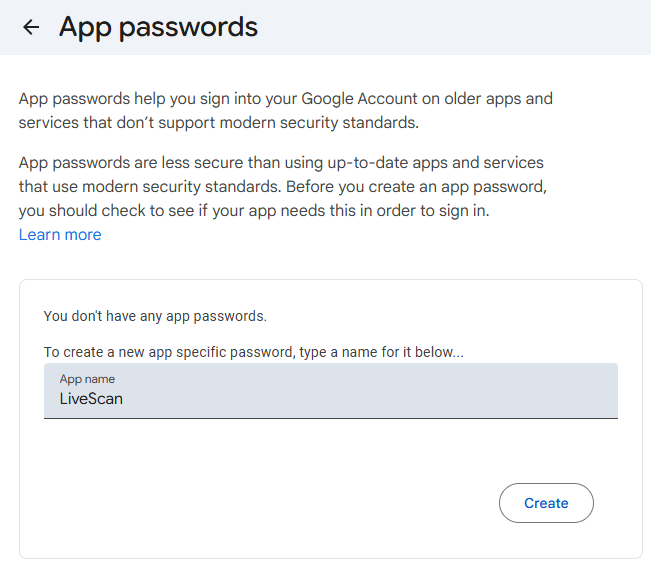
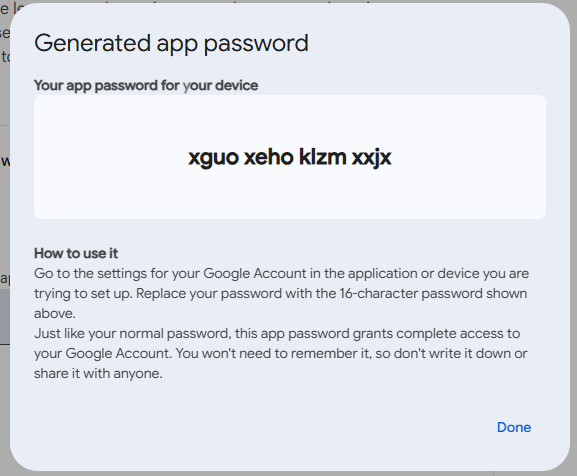
In LiveScan, go to Configuration (See Figure 008 below)
Figure 008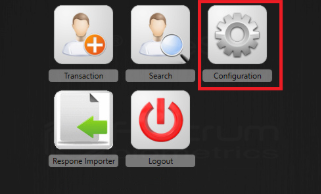
Go to Transmitter Settings and under Type of Transaction, select NFUF-FBI Applicant (See Figure 009 below)
Figure 009
In the 'Select transmitter to modify the settings', select SMTP (See Figure 010 below)
Figure 010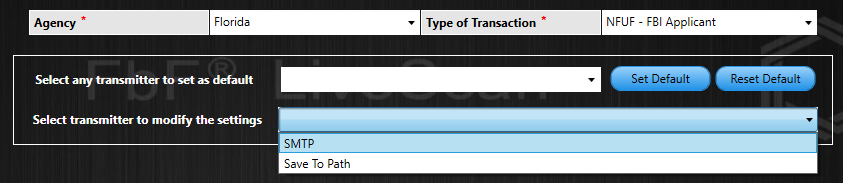
Copy and paste new App password into the FDLE Transmitter Settings under Password (See Figure 011 below)
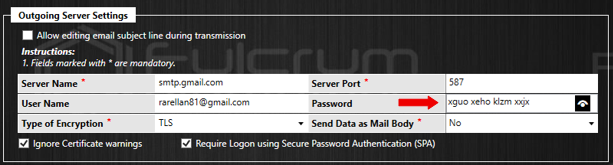
Click 'Save' at the bottom of the page.
It will ask if you want to replicate settings to all Tots, select Yes (See Figure 012 below)
Figure 012
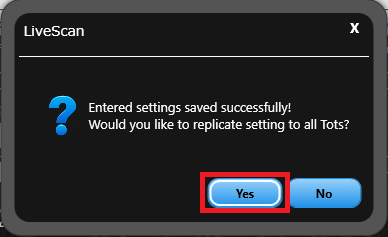
It will then state that all settings have been replicated successfully, click OK and go back to the Main menu to submit any pending transactions.
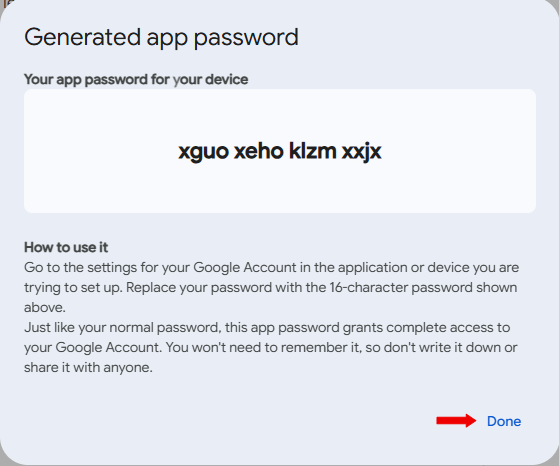
IMPORTANT: This applies every time you reset your Gmail password.
You can now navigate back to LiveScan. Access to customer’s Gmail is no longer needed.
Was this article helpful?
That’s Great!
Thank you for your feedback
Sorry! We couldn't be helpful
Thank you for your feedback
Feedback sent
We appreciate your effort and will try to fix the article